How to add a Black Friday countdown bar to WooCommerce
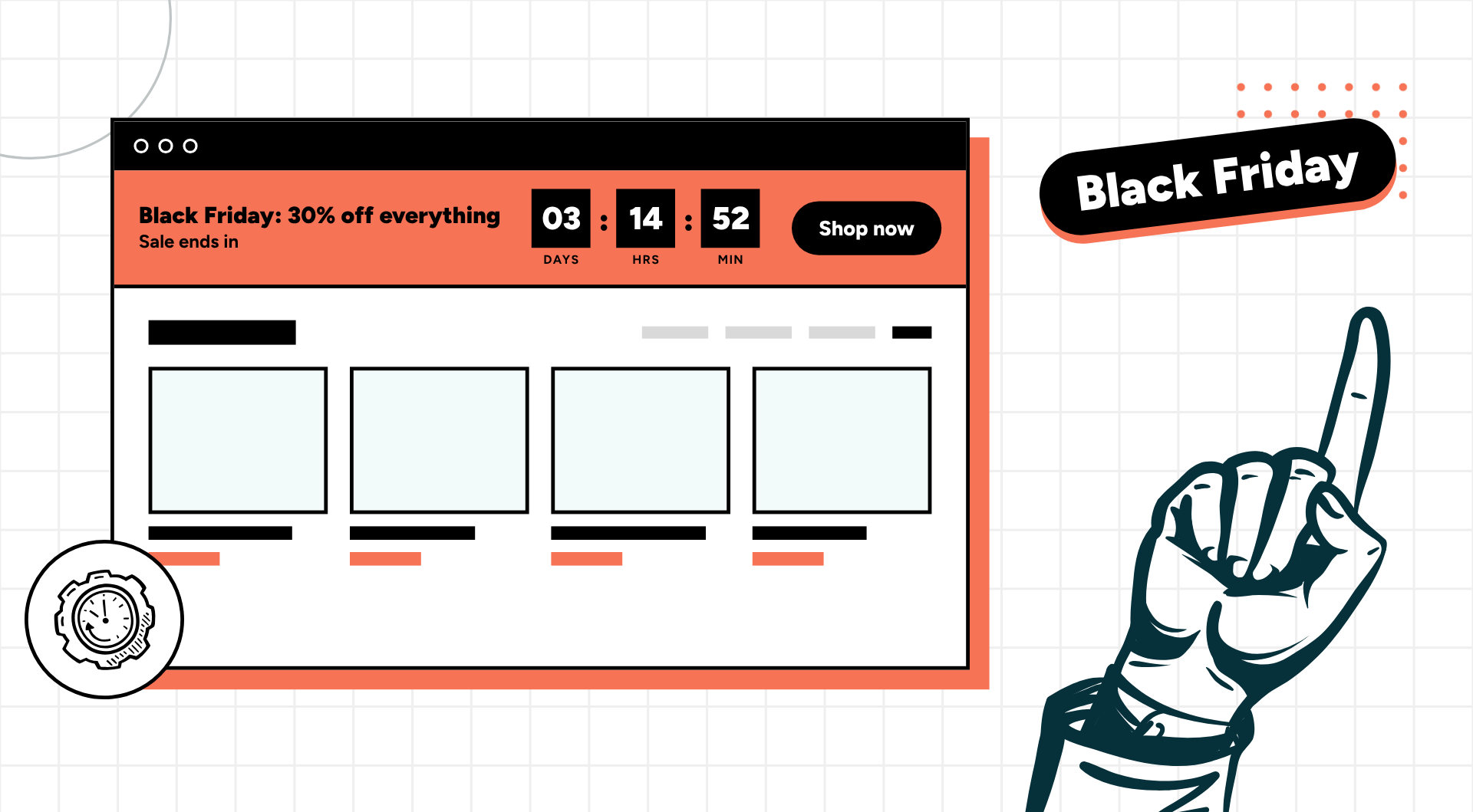
Black Friday falls on 27 November this year, Cyber Monday on 30 November, and most stores will try to squeeze a week or more of sales out of the gap between them. A countdown bar across the top of every page is the simplest way to tell shoppers there is a sale on and that it ends soon. This guide covers the free option built into WooCommerce, how to set a proper countdown bar up with Bulletin, and how the other plugins compare, so you can have one live in under half an hour.
Why a bar, not just a timer on the product page
Most “WooCommerce countdown timer” plugins put a clock on the single product page, next to the price. That is useful for a flash deal on one product, but Black Friday is a store-wide event. Shoppers land on your homepage, a category page or a blog post from Google, and none of those pages show a product-page timer.
A countdown bar sits above or below your header on every page, so it does three jobs at once: it announces the sale, it shows the deadline, and it gives people one link to the sale page. It also carries no stock or pricing logic, so it cannot break your checkout. For most stores, the bar is the first thing to set up and the product-page timer is optional.
What a good Black Friday bar needs
Before you choose a tool, write down what the bar has to do. In practice that is a short list: one clear line of text, a live countdown to the real end time, a button or link to the sale category, a shorter message for mobile screens, and an end date so the bar switches itself off when the sale finishes. Colours that match the store and a light footprint on page speed round it out. Rotating messages, per-URL bars and a dismiss icon are nice to have, and usually what separates the free tools from the paid ones.
Option 1: the built-in WooCommerce Store Notice (free)
WooCommerce ships with a store notice you may never have used. It lives in the Customizer: go to Appearance → Customize → WooCommerce → Store Notice, type your message, tick Enable Store Notice and publish. You can also use the Customizer’s schedule option (the gear icon next to Publish) to make it go live at a set date and time.
[Screenshot: WooCommerce Store Notice panel in the Customizer with the Enable Store Notice box ticked]
It is free, already installed, and for a one-line “Black Friday sale now on” message it works. The limits show up quickly, though. There is no countdown. Where the notice appears and how it looks depends entirely on your theme, and many themes give you no colour controls. There is no mobile-specific message, no button and no end date, so you have to switch it off yourself on Monday night. On a block theme the Customizer is hidden by default; you can still reach it at /wp-admin/customize.php.
If your sale is one message for one weekend and your theme styles the notice acceptably, use it. Otherwise read on.
Option 2: set up a countdown bar with Bulletin
Bulletin is our announcement bar plugin for WordPress and WooCommerce. The free version on wordpress.org gives you the bar itself; the live countdown, expiry and button are in Pro. Here is the full setup.
1. Install the plugin
In your WordPress dashboard go to Plugins → Add New, search for “Bulletin announcement”, install and activate. A new Bulletins menu appears in the sidebar.
2. Create the bulletin and write the message
Click Add New under Bulletins. In the Message tab, type your desktop message. Markdown works here, so you can bold the discount and add a link without touching HTML, for example:
**Black Friday:** 30% off everything with code BF30 — [Shop the sale](/black-friday/)
Add a shorter mobile message underneath, something like “30% off with BF30”. A full sentence that fits on a laptop wraps to three lines on a phone and pushes your header down, so this field is worth the extra ten seconds.
[Screenshot: Bulletin Message tab with desktop and mobile messages filled in]
3. Choose where it displays
In Display options, pick Header and then Above header so the bar sits at the very top of the page. Below header also works if you want your logo and menu to stay first. If your theme uses a fixed header that the bar fights with, the Floating at bottom or Sticky footer types avoid the problem entirely and still show on every page.
4. Match your brand colours
In the Design tab set the background and text colours. Black Friday bars tend to be black or dark grey with white or yellow text, but the only rule that matters is contrast: the message should be readable at a glance. You can adjust vertical padding and font size here too. Keep the bar thin; it should announce, not dominate.
5. Turn on the countdown and the end date (Pro)
Open the Expiry tab and enable Expire bulletin. Set the date and time your sale actually ends, in your store’s timezone. Then enable Show Countdown so the remaining time appears on the bar and ticks down live. When the end time passes, the bulletin sets itself to inactive and disappears from the site without you doing anything, which is exactly what you want at midnight on Cyber Monday.
[GIF: Bulletin bar with a live countdown ticking down on the storefront]
6. Add a button (Pro)
In the Message tab add a button pointing at your sale category, such as /product-category/black-friday/, with short text like “Shop now”. A button is easier to tap on a phone than a text link. It can also open in a new tab or trigger an Easy Popups popup if you would rather show the coupon code that way.
7. Preview and publish
Use the preview to check desktop and mobile, then publish. If the bar does not show up, clear your caching plugin and any server-side cache first; that is the cause nine times out of ten.
8. Optional: different bars for different pages
With Pro’s Placement rules you can include or exclude the bar by URL, with wildcards such as /product-category/sale/*. A common setup is one countdown bar site-wide and a quieter bar on the sale pages that just repeats the coupon code.
How the plugins compare
| WooCommerce Store Notice | Bulletin Free | Bulletin Pro | HurryTimer | Finale Lite | Top Bar for WooCommerce (Addify) | |
|---|---|---|---|---|---|---|
| Site-wide bar | Theme-dependent | Yes | Yes | Pro only | Pro only | Yes |
| Live countdown in bar | No | No | Yes | Pro only | Pro only | Yes |
| Auto-expire at end date | No | No | Yes | Yes | Yes | Yes |
| Mobile message | No | Yes | Yes | No | No | — |
| Button / link | Markdown link only | Markdown link | Yes | Yes | — | Yes |
| Show by URL | No | No | Yes | Pro | Rules by product | Yes |
| Price | Free | Free | From $29/yr | Free; Pro paid | Free; Pro paid | $49/yr, no free version |
HurryTimer and Finale Lite are good plugins, but they are countdown plugins first: their free versions put timers on product pages, and the sticky bar is a Pro feature in both. Addify’s Top Bar for WooCommerce does the bar and the countdown well but has no free tier and costs $49 a year for one site. Bulletin’s free version gets you a styled, mobile-friendly bar for nothing, and Pro at $29 a year adds the countdown, expiry and button.
Plan the sequence, not just the bar
If you are running the usual two-week stretch, create the bulletins in advance and let the expiry dates do the work: a teaser bar from mid-November (“Black Friday deals drop Friday 27 November”) that expires Thursday night; the main Black Friday bar with the countdown, expiring Sunday night; a Cyber Monday bar with a fresh countdown, expiring Monday midnight; and an “extended until Wednesday” bar if you need it. Each is a separate bulletin with its own end time, so you set them up once and nothing needs touching during the busiest sales weekend of the year.
Mistakes to avoid
The biggest one is a fake deadline. A timer that resets for every returning visitor, or a “sale ends tonight” bar still showing on Wednesday, trains people to ignore your bars for the rest of the year and can run into consumer law in some countries. Set the real end time and let the bar expire.
Second is cramming the bar. One offer, one deadline, one link. Third is forgetting the cache: full-page caching can serve an old bar, or no bar, for hours, so clear it after you publish. Fourth is skipping the mobile check. Most Black Friday traffic is on phones, so open your store on your own phone before the sale starts and make sure the bar is one line and the button is tappable.
Where Bulletin fits
If you want the bar without the countdown, the free version of Bulletin does the job: unlimited bulletins, a header, floating or sticky-footer position, separate desktop and mobile messages, colours, font size, alignment and markdown links. For Black Friday specifically, the pieces that matter are the live countdown, the automatic expiry, the button and the per-URL placement, and those are in Bulletin Pro, from $29 a year for one site with a 14-day money-back guarantee. The free plugin is on wordpress.org, and the expiry and countdown settings are documented here. If your store is built with Elementor, our guide to adding an announcement bar in Elementor covers how Bulletin sits alongside the builder.
FAQ
Does a countdown bar slow down my WooCommerce store?
Not noticeably. A bar is a small amount of CSS and, for the countdown, a little JavaScript; Bulletin also caches its output. The product images on the same page weigh far more.
Can I show the countdown bar only on the sale pages?
Yes, with Bulletin Pro’s placement rules. Include a URL pattern such as /product-category/black-friday/* to show the bar only there, or exclude the checkout so nothing distracts people who are already paying.
What happens when the countdown reaches zero?
With Expire bulletin enabled, the bulletin becomes inactive and is removed from the site at the end time. If you want a follow-up message such as “Sale extended”, create a second bulletin with a later expiry so it takes over.
Will the bar work with my theme and a caching plugin?
Bulletin works with any properly coded theme; a fixed-position header occasionally needs a line of CSS, which Pro’s additional-CSS field handles. Caching plugins are fine as long as you clear the cache after publishing or changing a bulletin.
Ready to set yours up before the 27th? Install Bulletin free from wordpress.org or get Bulletin Pro for the countdown.