Disable Bloat 4.3: hide notices from other plugins, and what we measured
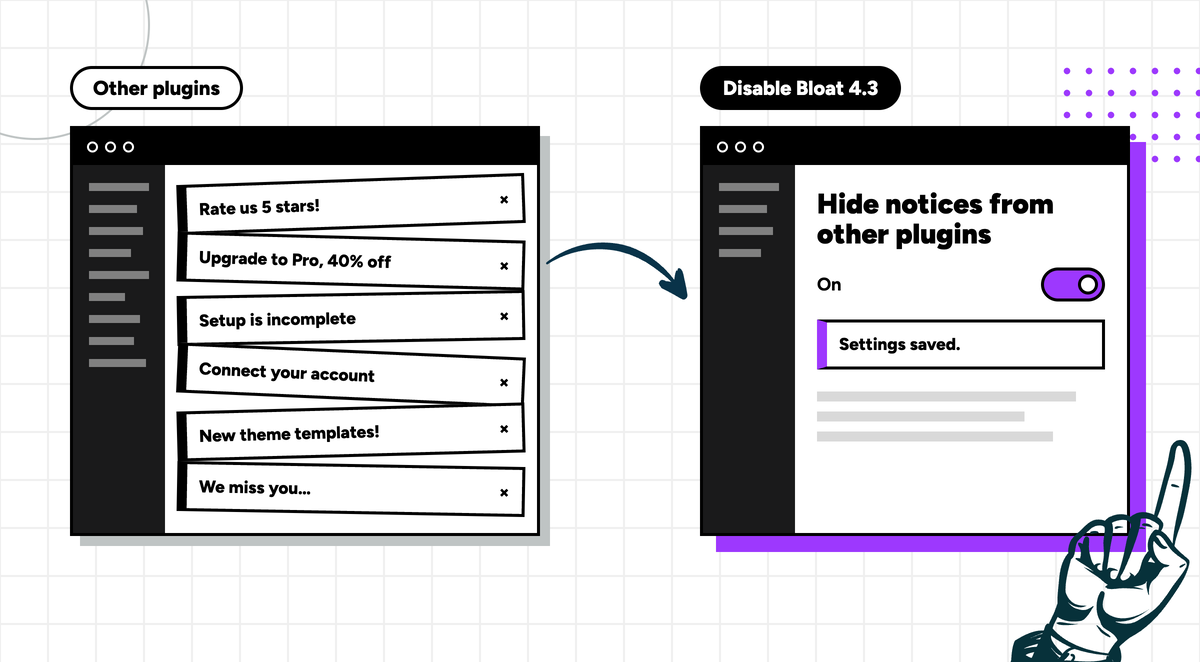
Every plugin you install wants a word with you. A rating request here, an upgrade offer there, a setup wizard you finished months ago. After a while the top of every admin screen is a stack of banners you have to scroll past to get to work.
Disable Bloat 4.3 adds one switch for that. It also comes with our first proper benchmark, and a round of fixes for WooCommerce 11.
New in PRO: hide notices from other plugins
Turn it on and the banners, nags and promos that other plugins and your theme add to the top of admin screens disappear. Notices from WordPress, WooCommerce and Disable Bloat itself still show, so core updates, WooCommerce messages and our own settings notices are untouched.
Hiding everything from other plugins would be too blunt, because some of those notices matter. A payment gateway telling you it’s disconnected is not a promo. So the setting comes with a keyword list: if a hidden plugin’s notice contains one of your words, it still shows. The default list is:
saved, payment, error, failed, expired, security, database
That keeps “Settings saved” confirmations, payment problems, errors, expiring licences and security warnings visible. Matching isn’t case-sensitive and counts part of a word, so payment also catches “WooPayments”. Add the names of plugins you always want to hear from, or clear the list to hide every notice from other plugins.
To turn it on, go to Settings › Disable Bloat › Admin panel and tick Notices from other plugins. The keyword field sits right below it.
What it doesn’t do: it only hides admin notices. Dashboard widgets (Disable Bloat has a separate setting for those) and popups that plugins draw with JavaScript are not affected.
What we measured
We wanted numbers we could stand behind, so we built a deliberately bloated WooCommerce store: 23 active plugins including Elementor, Yoast SEO, WPForms, Jetpack, UpdraftPlus and WooPayments, on the OceanWP theme, with 25 products and an Elementor home page. Then we measured the same six store pages and six admin pages with Disable Bloat off, and with its settings switched on.
| Disable Bloat off | Disable Bloat on | Change | |
|---|---|---|---|
| WooCommerce Home, response time | 368 ms | 306 ms | 17% faster |
| WooCommerce Home, database queries | 348 | 278 | 20% fewer |
| Admin screens, database queries (average) | 361 | 312 | 14% fewer |
| Admin screens, response time (average) | 356 ms | 329 ms | 8% faster |
| Store pages, database queries (average) | 268 | 244 | 9% fewer |
| Store pages, scripts and stylesheets (PRO) | 79.5 | 70 | up to 10 fewer |
The biggest win is in the WooCommerce admin, where Disable Bloat switches off a lot of work WooCommerce does on every screen. On the storefront the plugin cuts database queries and files, but server response time barely moved (2–3%, which is within normal run-to-run variation), so we’re not going to claim your shop gets twice as fast.
Your results will depend on your theme, plugins and hosting. Fewer database queries matter most on shared hosting, where the database is often the bottleneck.
Fixes for WooCommerce 11
- WooCommerce › Home and the other WooCommerce React pages no longer show unstyled when “Disable WooCommerce Admin” is on.
- “Disable WooCommerce Blocks (front-end)” now always keeps the styles on the block Cart and Checkout pages, so your store can still take orders.
- “Disable REST API” stays out of the way of logged-in users (the block editor and WooCommerce admin need it) and of the WooCommerce Store API that powers block checkout.
- “Deactivate the Template Editor” no longer blanks the front end on block themes. It now applies to classic themes only.
Version 4.3 also includes everything from 4.2: new switches for the WooCommerce “Payments” menu item, usage tracking, the store visibility badge, WordPress 7’s AI features and more. The full changelog is on WordPress.org.
How to update
Already using Disable Bloat? Update from your Plugins screen as usual. Hiding notices from other plugins is part of Disable Bloat PRO. If you’re on the free version, you can upgrade from the plugin’s settings page, or compare Free and PRO on the Disable Bloat page.
Is there a plugin still cluttering your admin after this? Tell us in the support forum and we’ll take a look.