How to disable the WooCommerce Marketing hub (and the rest of the admin bloat)
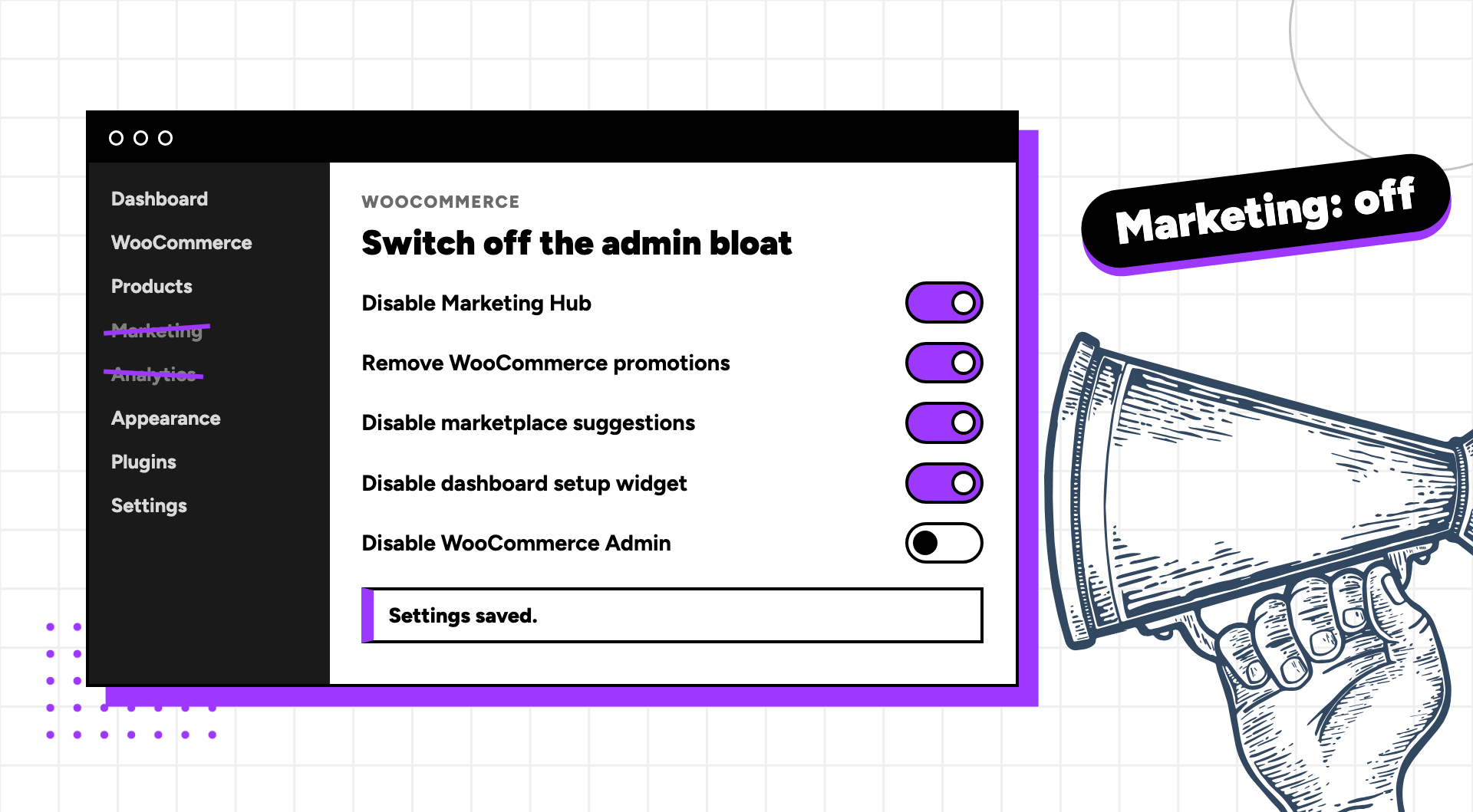
Every WooCommerce store comes with a Marketing menu, an Analytics menu, a Home screen, a notification bar, extension recommendations in half a dozen places and a dashboard setup widget, whether you want them or not. Most store owners use none of it, and all of it costs database queries and screen space on every admin page load. This guide shows three ways to switch it off: the settings WooCommerce gives you, a code filter, and the free Disable Bloat plugin, which is the only route that covers the Marketing hub itself.
What the Marketing hub actually is
The Marketing menu arrived in WooCommerce 4.1 and sits in the left-hand admin menu between WooCommerce and Products. Its Overview page has four parts: a list of marketing extensions you have installed with activate and setup links, a block of recommended extensions from the WooCommerce marketplace, a feed of articles from the WooCommerce.com blog, and coupon management. Coupons used to live under WooCommerce → Coupons and were moved here.
For stores running Google Listings & Ads, Mailchimp for WooCommerce or similar official extensions, the Overview page is a mildly useful launchpad. For everyone else it is a page of upsells, and the knowledge-base feed means a request to WooCommerce.com every time it loads. Coupons are the only part most people use, and you can keep those without the rest.
Why it slows the admin down
WooCommerce Admin, the React-based layer behind the Home screen, Analytics, Marketing and the notification bar, runs on every admin page, not only the ones you can see. It registers scripts, runs scheduled actions to keep the Analytics tables in sync with your orders, and checks for notes and recommendations to show in the inbox. On a store with a few thousand orders and twenty plugins, that is a noticeable share of the wait between clicking Orders and seeing the list.
Disable Bloat’s own test, on a store running 23 plugins (Elementor, Yoast, WPForms, Jetpack and WooPayments among them) on the OceanWP theme, measured the WooCommerce Home screen loading 17 per cent faster with 20 per cent fewer database queries once the admin features were off, and around 14 per cent fewer queries on average across WooCommerce admin screens. Your numbers will differ, but the direction is consistent.
Method 1: what WooCommerce lets you turn off itself
WooCommerce has no setting to hide the Marketing menu. It does have settings for two of the noisiest things around it, and you should use them first because they need no plugin.
1. Turn off marketplace suggestions
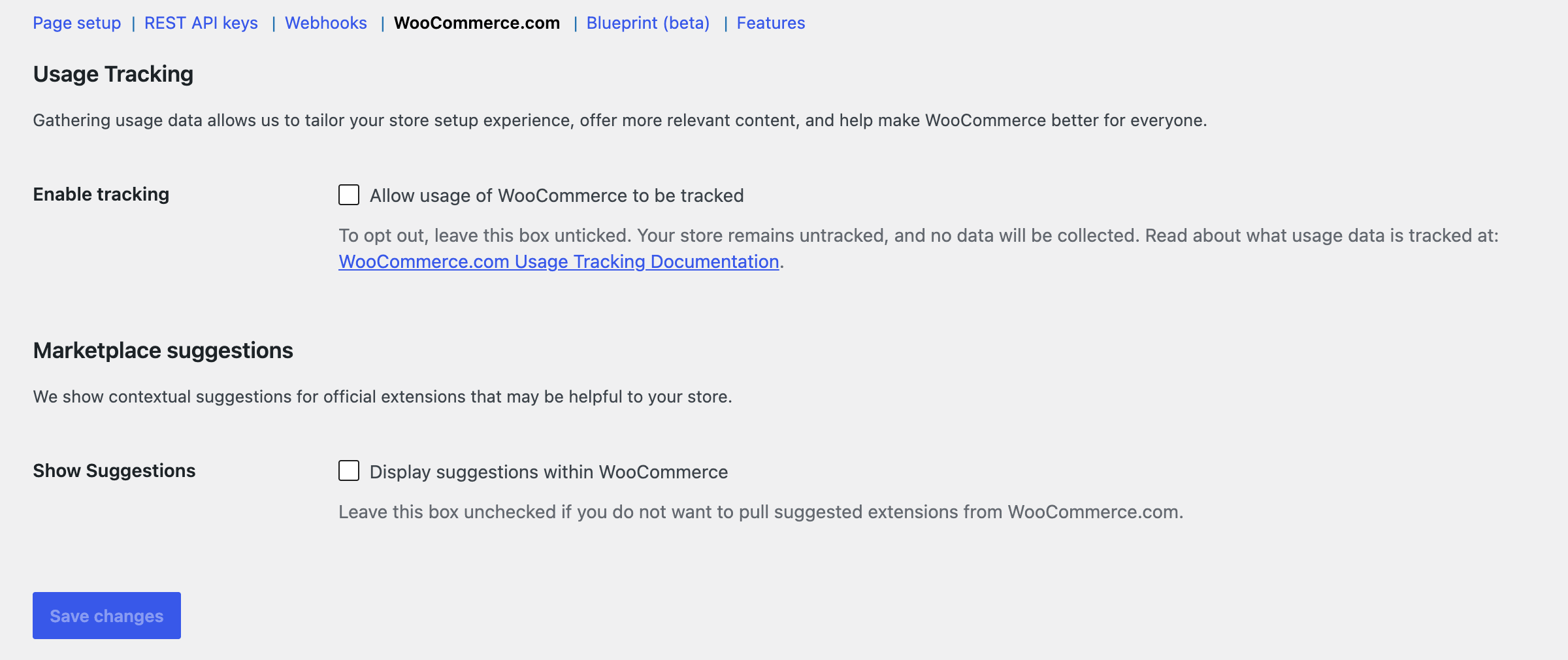
Go to WooCommerce → Settings → Advanced → WooCommerce.com and untick Display suggestions within WooCommerce. Save. This removes the recommended-extensions block from the Marketing Overview and the extension suggestions that appear on product and order screens. It does not remove the Marketing menu or the knowledge-base feed.
2. Turn off Analytics
Go to WooCommerce → Settings → Advanced → Features and untick WooCommerce Analytics. Save. The Analytics menu disappears and WooCommerce stops syncing orders into the analytics tables, which is where a lot of the background work goes. If you later want the reports back, re-enable the feature, then go to Analytics → Settings and run Import Historical Data so the tables catch up.
The Features tab also lets you turn off Order Attribution, Cost of Goods Sold, the customer review request and several experimental features. Leave High-Performance Order Storage alone; that one makes the admin faster, not slower.
3. Turn off usage tracking
While you are on the WooCommerce.com tab, check that Enable tracking is off. It is off by default, but setup wizards sometimes switch it on.
That is all the settings screens offer. The Marketing menu, the Home screen, the notification bar, the status meta box and the setup widget all stay.
Method 2: the code filter
If you are comfortable adding a snippet to a child theme’s functions.php or a code snippets plugin, WooCommerce Admin has had a master switch since it was merged into core:
add_filter( 'woocommerce_admin_disabled', '__return_true' );This removes the Home screen, Analytics, the Marketing menu and the notification bar in one go. There are two things to know before you use it.
First, in May 2021 the WooCommerce team published a request for comments proposing to deprecate this filter, because too much of the admin now depends on the WooCommerce Admin framework. It still works on WooCommerce 11.2, but it takes everything with it.
Older guides remove just the marketing entry through the woocommerce_admin_features filter. That stopped working in WooCommerce 11.1, which deprecated “marketing” as an admin feature and now adds the Marketing menu regardless. To remove only the Marketing menu on current versions, take the menu out directly and put Coupons back under WooCommerce:
add_action( 'admin_menu', function () {
    remove_menu_page( 'woocommerce-marketing' );
}, 999 );

add_filter( 'woocommerce_register_post_type_shop_coupon', function ( $args ) {
    $args['show_in_menu'] = 'woocommerce';
    return $args;
}, 20 );

add_filter( 'wc_admin_show_legacy_coupon_menu', '__return_false' );
Second, test either snippet on staging before trusting it on a live store, and expect to revisit it after major WooCommerce updates. The 11.1 change above is exactly the kind of thing that breaks a snippet silently.
The bigger caveat applies to both snippets: some extensions depend on WooCommerce Admin being present. Google Listings & Ads is the usual example, and WooPayments leans on it heavily. If you run either, use the menu snippet rather than the master switch.
Method 3: the Disable Bloat plugin
If you would rather tick boxes than maintain snippets, Disable Bloat for WordPress & WooCommerce is our plugin for exactly this: 10,000+ active installs, a 4.8-star rating from 100 reviews on wordpress.org, and version 4.3.0 shipped on 7 November 2026. Every WooCommerce option below is in the free version.
1. Install and open the settings
Go to Plugins → Add New, search for “Disable Bloat”, install and activate. The settings live at Settings → Disable Bloat.
2. Disable the Marketing hub
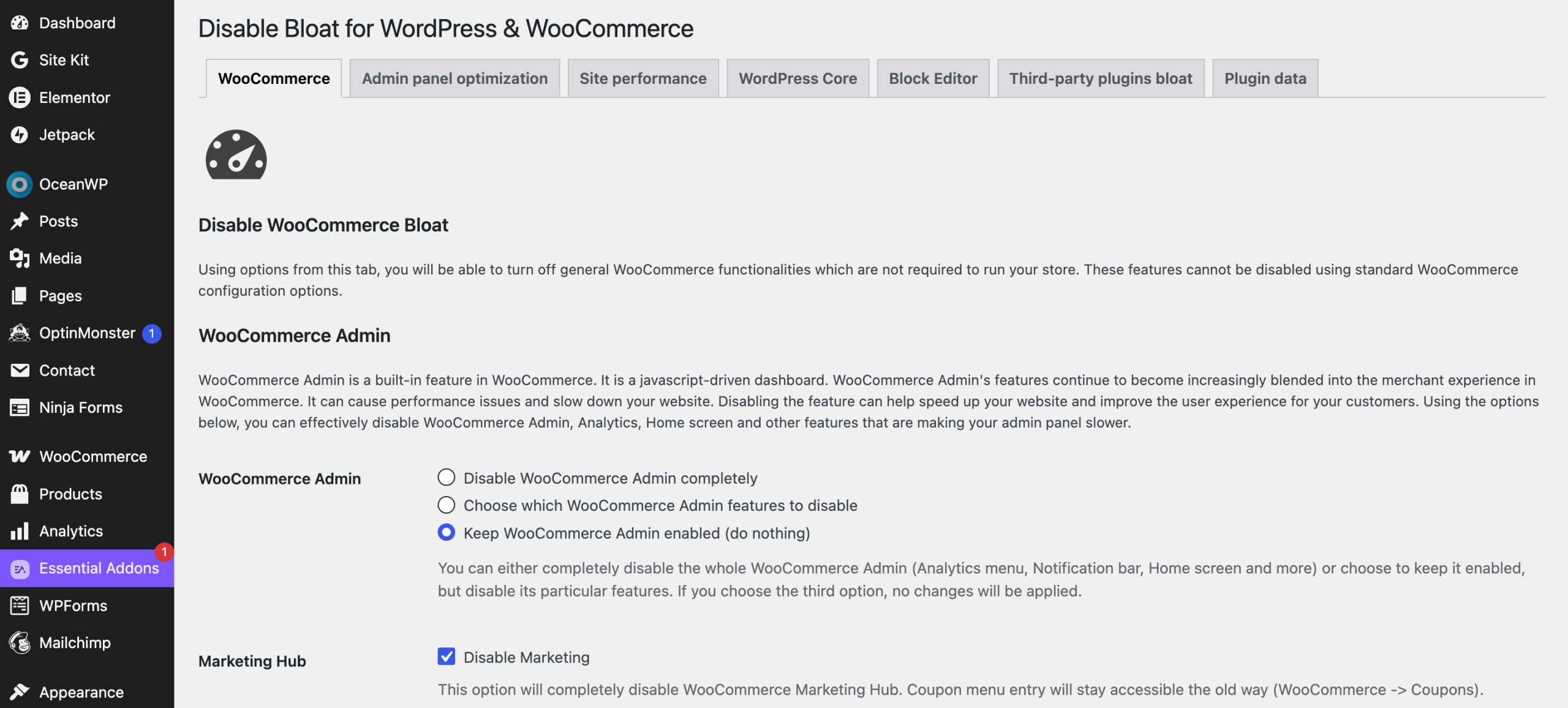
In the WooCommerce tab, under Marketing Hub, tick Disable Marketing. The Marketing menu goes, along with the Overview page and its feeds. Coupons are not lost: they move back to WooCommerce → Coupons, where they lived before version 4.1. This is the one step none of the built-in settings can do.
3. Decide what to do with WooCommerce Admin
You have two choices here. Disable WooCommerce Admin completely is the master switch: it removes the Home screen, Analytics, the notification bar and the admin inbox. If you rely on an extension that needs WooCommerce Admin, use Choose which WooCommerce Admin features to disable instead and untick only the parts you do not want. Note that on WooCommerce 11 and later WooCommerce exposes very few features to this list (only Store alerts on 11.2), so the selective option is narrower than it used to be.
4. Clear the nags
In the WooCommerce promotions section, tick Disable WooCommerce.com notice, Disable WooCommerce Marketplace Suggestions and Disable Extensions & My Subscriptions submenus. Together these remove the connect-your-store banner, the extension upsells and the two marketplace submenus.
5. Tidy the dashboard
Tick Disable WooCommerce Status Meta Box and Disable WooCommerce Dashboard Setup Widget to take the two WooCommerce boxes off the main WordPress dashboard. The recommended shipping and payments meta boxes on the order and settings screens have their own toggles too.
6. Optional: keep the classic product editor
Disable New WooCommerce Product Editor keeps the classic product screen if the block-based editor has been switched on for your store and you prefer the old one.
7. Save and reload
Save, then reload the admin. The Marketing menu, the extra submenus, the notification bar and the dashboard boxes should be gone. If an extension complains, go back and switch from the master switch to selective features.
What Pro adds
The WooCommerce clean-up above is free. Disable Bloat Pro, from $29 a year for one site, adds the options that go beyond WooCommerce: hiding admin notices from other plugins and themes with a keyword keep-list, choosing which WordPress dashboard widgets to remove, disabling WooCommerce Blocks scripts in the back end, dropping unused Stripe scripts, controlling the Heartbeat API and REST API, and a set of switches for Yoast, Contact Form 7, ACF, UpdraftPlus and WPML nags.
What to leave on
Not everything in WooCommerce Admin is bloat. Keep Analytics if anyone on your team looks at the revenue or product reports; it is the only reporting WooCommerce ships. Keep Order Attribution if you spend on ads and want to know which channel each order came from. Keep High-Performance Order Storage regardless. And if you run WooPayments or Google Listings & Ads, keep WooCommerce Admin itself and remove only the Marketing hub and the nags.
Where Disable Bloat fits
If your only complaint is the Analytics menu and the extension suggestions, the built-in settings handle it. If you are comfortable with code and run no extensions that depend on WooCommerce Admin, the filter is a one-liner. Disable Bloat earns its place when you want the Marketing hub gone, the nags, meta boxes and submenus gone with it, and a maintained plugin tracking WooCommerce’s changes to these hooks instead of you. The free version on wordpress.org covers the whole WooCommerce admin clean-up; Pro, from $29 a year with a 14-day money-back guarantee, extends it to WordPress itself and to third-party plugin clutter, and the documentation has a page per option. If you are clearing the decks before the sales season, the other half of the job is the front of the store; our guide to a Black Friday countdown bar for WooCommerce covers that.
FAQ
Will disabling the Marketing hub remove my coupons?
No. With Disable Bloat’s Disable Marketing option, coupons move back to WooCommerce → Coupons. Existing coupons keep working at checkout.
Does disabling WooCommerce Analytics delete my data?
No. It stops new orders being synced into the analytics tables. If you switch Analytics back on, run Import Historical Data under Analytics → Settings and the reports are rebuilt from your orders.
Is the woocommerce_admin_disabled filter still supported?
It still works, but WooCommerce proposed deprecating it in 2021 and prefers per-feature toggles. Treat it as something to re-test after each major WooCommerce release, or use a maintained plugin that does that for you.
Can I hide the WordPress dashboard widgets too?
The WooCommerce widgets are covered in the free version of Disable Bloat. Choosing which core WordPress dashboard widgets to remove (Activity, Quick Draft, WordPress Events and News, Site Health) is a Pro option.
Tired of the Marketing menu? Install Disable Bloat free from wordpress.org or see what Pro adds.